


FAQs
At BankWest, we strive to make your financial world as convenient as possible.

We're here when you need us.
Have questions?
We have answers! Explore our FAQ section to find quick and clear solutions to common banking inquiries. If you don’t find what you need here, call our eBanking Center at 800-253-0362.
Member Login Page
- To begin using your credit monitoring service, please go to: account.idtheftsmart.com
- First time visitors will need to enter through the left side of the screen (New Members) by supplying their Member Number, Last Name & Zip Code. Click Continue.
- Return visitors will enter through the right side of the site, using the User ID and Password that was created during their initial set up. Then click continue.
Demographic Information & Username/Password Page
- This page will be pre-populated with the demographic information known to Kroll
- Member must create a UserID and Password, following the provided guidelines. Click continue when finished.
- Password Question and Answer will be used to help retrieve the member’s login credentials, should they forget them in the future.
Identity Validation Page
- Member will be required to answer three questions to validate their identity before receiving any credit alerts. Click continue when finished.
Member Dashboard Page
- Alert Summary section will provide access to all new credit alerts that have not been viewed
- Credit Services tab allows members to view all previously viewed credit alerts
- Consultation & Restoration tab will provide information on the unlimited consultation with a licensed investigator as well as full identity restoration if necessary.
Member Education Section
The Member Education section provides tips on how to identify signs of fraud, how to obtain and review your credit report, links and phone numbers on ways to remove your name from marketing lists, etc.
Members Enrolled in idIntegrity Scan – Identity Protection Section
- The Web Watcher tab monitors for the presence of your personal information on thousands of identity trading websites, chat rooms, forums and networks associated with criminal activity.
- The Public Persona tab allows you to view and monitor public record databases for known addresses and aliases associated with your Social Security Number.
- The Address Aware reports on and monitors your address history with the USPS. We will provide you with an 18-month address history and will alert you if a fraudster has tried to change your address.
If you need assistance from one of Kroll’s Licensed Private Investigators please call 866-355-1044.
Learn how to use the tools and features in our mobile and online banking systems.
Getting Started - Mobile Banking
Our free BankWest mobile banking app is available for Apple® and AndroidTM devices. Apple is a registered trademark of Apple, Inc. Android is a trademark of Google LLC.


Getting Started - Online Banking
Mobile Deposit
User Guides – Video
Learn how to use the features and tools in the online and mobile banking systems.
- Online Banking Basics
- Mobile Banking Basics
- Making Loan Payments in Online Banking
- Setting Up External Accounts
- Enabling Push Notifications
- Setting Up Alerts
- Personal Financial Management Tool
User Guides – PDF
Learn how to use the features and tools in the mobile and online banking systems.
Text Banking allows you to manage your accounts on the go. Once enrolled, you may check balances, review account history and transfer funds using any text-enabled device. You must be enrolled in mobile or online banking to enable text banking.
Getting Started
- Within mobile or online banking, in the Settings tab, click Text Enrollment.
- Toggle the Text Enrollment switch from “Off” to “On.”
- Read the terms and conditions and check the box next to “Agree to Terms.”
- Click the Save button when you are finished.
- Click the Visit Preferences button to be taken to the Account Preferences feature.
Note: Once you have signed up for Text Banking, you should receive a text confirmation.
Setting Account Preferences for Text Banking
- In the Settings tab, click Account Preferences, select an account you want to enroll in text banking.
- Click the SMS/Text tab.
- Toggle the SMS/Text Enrollment switch from “Off” to “On.”
- (Optional) Click the pencil icon to change the SMS/Text Display Name. Make your changes and click the check mark to save it.
Text Banking Commands
Text Command Options to 226563 for the following information:
- BAL or BAL < account nickname >: Request account balance.
- HIST < account nickname >: Request account history.
- XFER < from account nickname > < to account nickname > < amount >: Transfer funds between accounts. Enter full amount using dollars, decimal and cents ( i.e. 100.00 ).
- LIST: Receive a list of available text banking commands.
- HELP: Receive a list of contact points for information on text banking.
- STOP: Stop all text messages to the mobile device (for text banking and SMS alerts/notifications). An unsubscribe message will be sent to your number confirming the cancellation, and you will receive no additional text banking alerts.
User Guides – PDF
Learn how to use the features and tools in the mobile and online banking systems, including text banking.
Person-to-person payments are a digital cash alternative that make sending and receiving money as easy as texting and emailing. Whether it’s paying allowance, splitting the check, or sending a birthday gift, person-to-person payments allow you to quickly transfer money from your existing U.S. checking or savings account to almost anybody, almost anywhere.
How do I use P2P?
- Choose Send money with Zelle®. from the Transactions menu in online or mobile banking. The first time you use Zelle, you will be asked to accept the Terms and Conditions and set up your mobile number and email address.
- Enter/select the recipient’s mobile number or email and the amount of the payment.
- Confirm transaction details then hit Send.
How does the recipient accept my payment?
- They will receive an email or text message notification via the email or U.S. mobile number they used to enroll with Zelle®.
- If you send money to someone who isn’t enrolled with Zelle®, they will receive a notification prompting them to enroll. After enrollment, the money will be sent directly to your recipient’s account, typically within minutes.
About P2P:
- Available to personal online and mobile banking customers
- There is no cost to use P2P.
- Per transaction limit: $500
- Daily P2P limit: $500; 5 transactions per 24-hour period*
- Monthly P2P limit: $5,000
- May be used to send money to BankWest and non-BankWest customers
- Requires U.S. checking or savings account.
*As a best practice for fraud prevention, BankWest requires new Zelle customers to establish a transaction history prior to conducting transactions at the $500 limit.
U.S. checking or savings account required to use Zelle®. Transactions between enrolled users typically occur in minutes and generally do not have fees.
Zelle and the Zelle related marks are wholly owned by Early Warning Services, LLC and are used herein under license.
Learn how to add your BankWest debit card to Apple Pay, Google Wallet and Samsung Pay.
Apple Pay
You can use Apple Pay with the iPhone® 6 or iPhone 6 Plus and later; iPad Pro®, iPad Air® 2, or iPad® mini 3 and later; and Apple Watch® paired with iPhone 5 or later. On your Apple device, open the Wallet app and tap the plus sign.
- Use your device’s camera to capture the information on your debit card. Then fill in any additional information needed.
- After your card is verified, tap Next to start using your BankWest debit card with Apple Pay.
- If you have added other cards to Apple Pay, set your BankWest debit card as your default by going to Settings > Wallet & Apple Pay. Tap Default Card. Select your BankWest debit card.
Get Apple Pay Information Sheet
Google Wallet
- Google Wallet requires Android 9 or higher on your phone and Wear OS 2.x or higher on your smartwatch. Open the Google Wallet app if it is installed on your device. Otherwise, begin by installing the Google Wallet app from the Google Play Store. Note that if you’ve already established another mobile payment app, that app will take priority. You will need to go into SETTINGS and set Google Wallet as your default.
- Establish your card.
If you have previously entered a card in Google Wallet, Google Wallet will automatically have access to that card information. When you tap the + sign the information from your previously loaded card will appear. If the previously loaded card is your BankWest debit card, tap the entry, confirm the card details as prompted, and then tap CONTINUE.
If you did not have your BankWest debit card previously set up, tap the + sign from the main screen then scan your BankWest debit card using your device’s camera. If you have trouble scanning the card you may enter the card details manually. - Review and accept the Terms of Service agreement and set your screen lock. Google Wallet will require you to have a screen lock established on your device. To establish lock-screen security go to your SETTINGS menu, then to SECURITY or SECURITY SCREEN LOCK, which is usually located under the PERSONAL section on Google devices. Under the SCREEN SECURITY section, tap the SCREEN LOCK option. Then, select which lock type you wish to use.
- To complete your card enrollment, you’ll be asked to verify your card information.
If BankWest has a cell phone number or email address associated with your debit card records, you will be prompted to complete the verification using SMS text messaging or email. After selecting your verification option, you will receive a One-Time Verification Code. You’ll be prompted to verify your card information, enter the code, and provide an electronic signature.
If BankWest does not have a phone number or email address associated with your debit card records, you’ll be asked to call in to verify your information through Mobile Wallet Support. This is a third-party customer support number and you may be asked to verify a recent debit card transaction and the amount of the transaction.
Get Google Wallet Information Sheet
Samsung Pay
- A Samsung Pay shortcut is preloaded on all newer Samsung compatible devices. If the shortcut is not on your device, go to the Google Play Store to download the Samsung Pay app. Enter your Samsung username and password. Follow the on screen instructions to scan your fingerprint.
- ADD CARD to add your BankWest debit card. Position the card inside the frame presented on the screen. Samsung Pay will automatically detect the card number and expiration date. If your device has trouble detecting the card, touch ENTER CARD MANUALLY. Follow the on screen prompts to enter any remaining information. Then, touch NEXT.
- Review and accept the Terms of Service.
- To complete your card enrollment, you’ll be asked to verify your card information.
If BankWest has a cell phone number or email address associated with your debit card records, you will be prompted to complete the verification using SMS text messaging or email. After selecting your verification option, you will receive a One-Time Verification Code. You’ll be prompted to verify your card information, enter the code, and provide an electronic signature.
If BankWest does not have a phone number or email address associated with your debit card records, you’ll be asked to call in to verify your information through Mobile Wallet Support. This is a third-party customer support number and you may be asked to verify a recent debit card transaction and the amount of the transaction.
Personal Accounts
- Log in to BankWest Online Banking or Mobile Banking*.
- From the Main Menu, select Services>Statement Delivery Preferences.
- Click the Delivery Preference drop down arrow and select Electronic Statements.
- Your statement will be emailed to the address displayed. If you wish to update the email address for an account, do so in the Delivery Email Address box.
- Review and Accept the E-Statement Delivery Disclosure and click Submit.
Business Accounts
If you wish to enroll in eStatements for your business account(s), please contact our eBanking Center at 1-800-253-0362 and ask for Cash Management Services.
Benefits of eStatements
eStatements from BankWest are a more secure and environmentally-friendly way of banking. Just a few of the benefits to switching include:
- Secure – Without the need for paper statements, your information will not be exposed to others if your statement is lost or stolen. All information used by eStatements is protected and cannot be seen by anyone but the account holder.
- Convenient – You have immediate access to current and past statements. You don’t have to wait in line at the bank or wait for a statement through the mail.
- Availability – Your statement can be accessed any time of day, any day of the week.
- Environmentally Friendly – Less paper means less clutter and trash. By using eStatements from BankWest, you are contributing a small part in conserving the environment.
Quick Start Guides for Quicken – Windows and Mac
Support for Quicken – Windows and Mac
QuickBooks Help Articles, Community Discussions with Other QuickBooks Users, Video Tutorials and More
Identify Theft
Stay alert for these signs of potential identify theft:
- Accounts you didn’t open and debts you can’t explain
- Fraudulent or inaccurate information on your credit reports
- Failing to receive bills or other mail
- Receiving credit cards you didn’t apply for
- Being denied credit or being offered less favorable credit for no reason
- Getting calls or letters from debt collectors about merchandise you didn’t buy
Visa Secure
This advanced security feature helps protect you from fraud while shopping online.
Phishing
Avoid becoming a victim of Phishing:
- Closely monitor your email for phishing and fraudulent links.
- Don’t click on links within emails that ask for your personal information.
- Be aware that phishing can also be done by phone.
- Protect your computer with spam filters, anti-virus and anti-spyware software, and a firewall, and keep them up to date.
- Only open email attachments if you’re expecting them.
- Be suspicious if someone asks for your personal information.
If you’ve been hooked by a Phisher:
- Act immediately.
- Report phishing even if you aren’t a victim. If you suspect an email or website is fraudulent, please notify the company or agency that the phisher was impersonating. You may also contact the Internet Crime Complaint Center, a partnership between the FBI and the National White Collar Crime Center, at http://www.ic3.gov/.
- If you receive a BankWest email and suspect phishing, contact our BankWest eBanking Center by calling 800-253-0362.
Your Credit Report
Credit reports contain information about you, including what accounts you have and your bill paying history. The law requires the major nationwide reporting companies – Equifax®, Experian® and TransUnion®– to give you a free copy of your credit report each year if you ask for it.
- Equifax or 800-525-6285
- Experian or 888-EXPERIAN (397-3742)
- TransUnion or 800-680-7289
Or you can use Annual Credit Report or call 877-322-8228, a service created by these three companies, to order your free credit reports each year. You can also write: Annual Credit Report Request Service, PO Box 105821, Atlanta, GA 30348-5281.
Additional References
- FDIC Consumer News
- Federal Trade Commission
- National Fraud Bureau of Investigation
- Federal Bureau of Investigation
- Anti-Phishing Work Group
- Internet Crime Complaint Center
Office of the Attorney General
1302 E. Hwy. 14 Ste. 1
Pierre, SD 57501
605-773-3215
Do Not Call Registry
This service removes your phone number from telemarketing lists.
Being an educated consumer is your best defense against becoming a victim of cybercrime. Below are a few helpful tips to help you protect your information.
Computer Safety and Security
- Use a current web browser.
- Avoid downloading programs from unknown sources.
- Keep your computer operating system up to date to ensure the highest level of protection.
- Install a personal firewall on your computer.
- Install, run and keep anti-virus and other software updated.
- Turn your computer off completely when you are finished using it – don’t leave it in sleep mode.
- Conduct online banking activities on secure computers only. Public computers (computers at internet cafes, copy centers, etc.) should be used with caution, due to shared use and possible tampering. Online banking activities and viewing or downloading documents (statements, etc.) should only be conducted on a computer you know to be safe and secure.
- Ensure your computer software and plug-ins are current. Before downloading an update to your computer program, first go to the company’s website to confirm the update is legitimate.
Internet Tips
- Use secure websites for transactions and shopping. Shop with merchants you know and trust. Make sure internet purchases are secured with encryption to protect your account information. Look for “secure transaction” symbols like a lock symbol in the lower right-hand corner of your web browser window, or “https://…” in the address bar of the website. The “s” indicates “secured” and means the web page uses encryption.
- Always log off from online banking and any website after using your credit or debit card or other sensitive information. If you cannot log off, quit your browser to prevent any potential unauthorized access to your account information.
- Close your browser when you’re not using the internet.
- Be cautious when using public hotspots.
Password Tips
- Do not use your Social Security number as a username or password. Change your usernames and passwords regularly and use combinations of letters, numbers, and special characters such as # and @. Do not use your online banking username and passwords as credentials for other online accounts.
- Protect your online passwords. Don’t write them down or share them with anyone.
- Protect your answers to security questions. Select questions and provide answers that are easy for you to remember, but hard for others to guess. Do not write down your security questions or answers or share them with anyone. If you have selected security questions on other websites, avoid using the same questions.
- It pays to choose more complicated passwords. Next time you set up a password keep these facts in mind to keep hackers from getting your personal information.
Email Tips
- Be wary of suspicious emails. Never open attachments, click on links or respond to emails from suspicious or unknown senders.
- If you receive a suspicious email, do not respond or provide any information.
If you think you may have responded to a phishing email with personal or account information, contact the BankWest Customer Service Center by calling 800-253-0362.
ITMs provide a personal interaction with a live teller. Each time you use an ITM you will be connected with a teller to have a face-to-face conversation as you conduct your transaction. In addition, ITMs allow you to conduct more transactions than an ATM, including deposits, withdrawals, account transfers, loan payments and more!
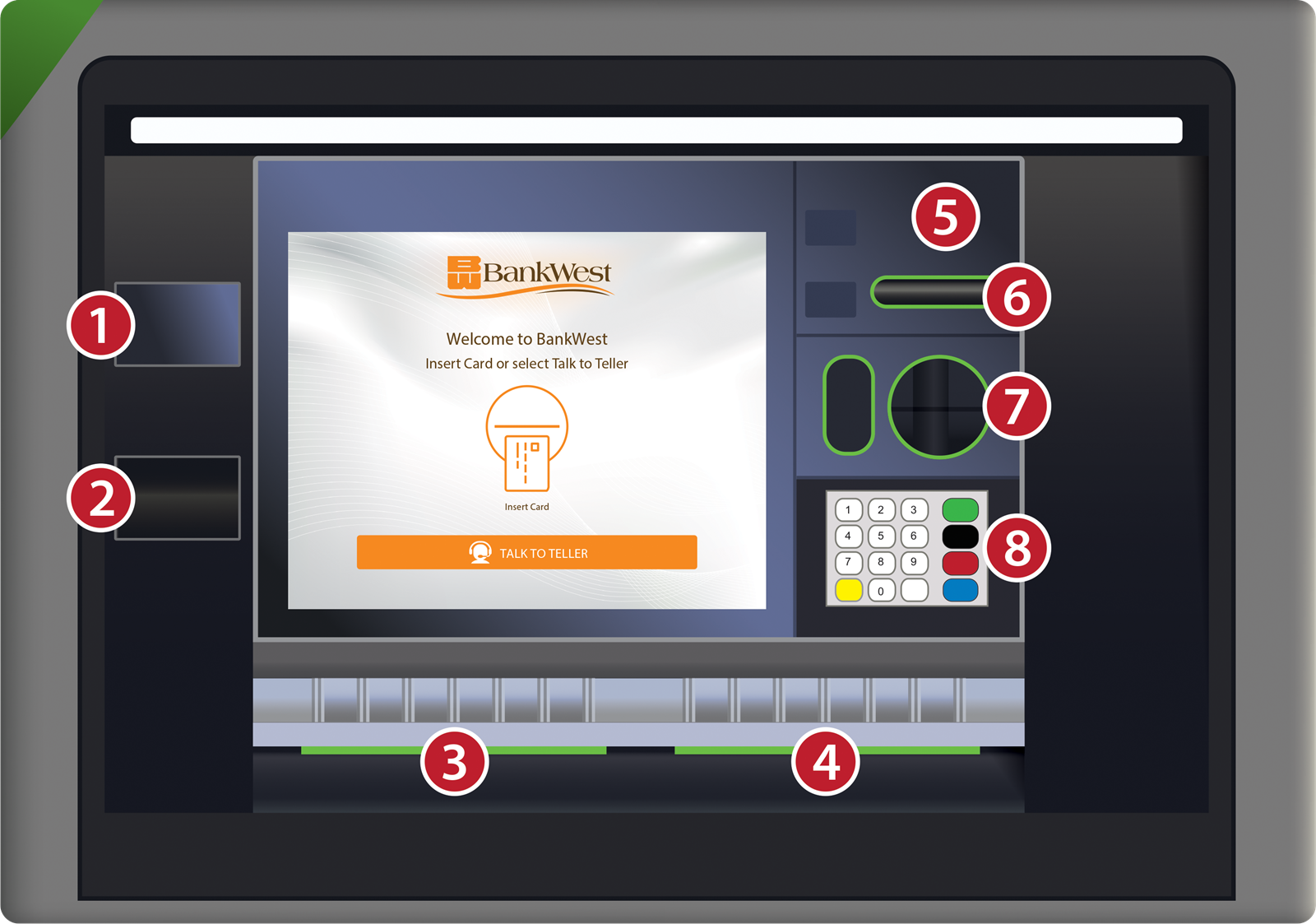 1. ID Scanner
2. Coin Dispenser
3. Cash/Check Deposit
4. Cash Dispenser
5. Video Camera
6. Receipt Printer
7. Card Reader
8. Encrypted Keypad
Yes, the ITM teller can assist customers with currency bill exchanges for smaller amounts. Large currency exchanges or cash orders will still need to be handled inside the branch.